
The most useful work productivity tools solve a specific problem: forgotten tasks, unclear priorities, interruptions, or work that gets lost between people. Choose a small setup around that problem, then give each tool a clear job.
A productivity app is an application for organizing or carrying out work. Productivity software is the broader term: it includes individual apps and suites that bring several work functions together. A useful setup might combine digital tools, paper, or tools already available through work. Follow the numbered choices that match your bottleneck instead of adopting the whole list.
Which Work Problem Should You Solve First?
Think of a recent work breakdown: perhaps you forgot to follow up after a meeting, or interruptions consumed the afternoon. Start with the problem that had the clearest cost. You may have several, but choose one place to begin.
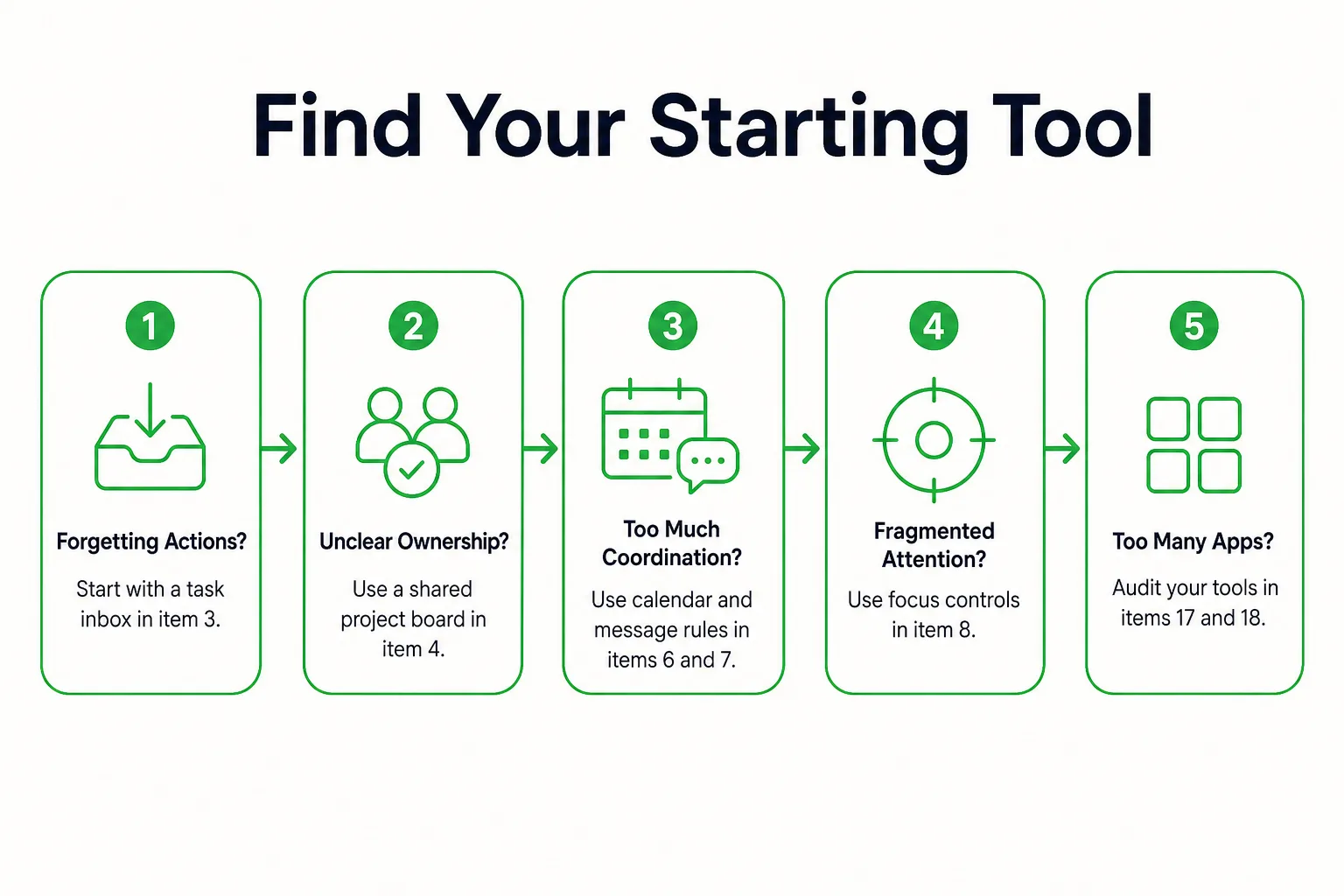
1. A Bottleneck Map for Choosing Your Tools
Use this route to match a work problem with a starting point:
- Forgotten actions → task inbox, in item 3.
- Unclear ownership → shared project board, in item 4.
- Meeting pressure → calendar and communication rules, in items 6 and 7.
- Fragmented attention → focus controls, in item 8.
These routes are a first choice, not a reason to install one app for every problem. A task list you already use may be enough to capture follow-ups. A shared board matters when other people need to see who owns a deliverable. If meetings are the main issue, a change to team habits may help more than another calendar. Start with the bottleneck you can describe in one sentence, then see whether the simplest available tool can address it.
2. A Requirements List Before You Sign Up
Before choosing an app, check whether your workplace approves it, whether you can use it on your devices, and whether you need to work without an internet connection. Ask whether you can export your information and whether coworkers must participate for the workflow to work. These are questions to answer for the tool you are considering, not assumptions about what any product can do.
Free productivity tools can suit a narrow individual task when you do not need shared ownership or workplace administration. Free access does not establish that a tool is approved for company information. For an individual planning task, try our free browser tools, which work without an account and keep your data on your device.
If you have several bottlenecks, pick the one that disrupts work today. Add another tool only when a distinct need remains.
Give Tasks, Projects, and Notes Different Jobs
Preparing a client proposal creates three kinds of work: actions to complete, deliverables that may need other people, and reference material such as requirements or pricing notes. Give each kind a home so you can find it without creating copies everywhere.
3. A Task Inbox for Work You Might Forget
A to-do list is for actionable work: a next step you can take, not a general subject or a project name. Write tasks with an action first, such as “Draft the pricing assumptions” or “Ask finance to review the estimate.” Add a deadline when the work genuinely has one, rather than using dates as reminders for every item.
Before you begin the day, review the list and choose the next actions that fit your available time and commitments. “Finish the proposal” is an outcome; “Draft the pricing assumptions” is an action that moves it forward. Keep the outcome in view if useful, but put the specific action in the task inbox. When several tasks compete for attention, sort them with the priority decision matrix before choosing what to do next.
4. A Project Board for Shared Deliverables
A personal list can remind you what you intend to do. Project management adds visibility when work depends on other people: who owns each piece, what must happen first, where a handoff sits, and what counts as done. Use a shared board when the team needs that picture, not just because a task has several steps.
For the proposal, the workflow might be: draft the proposal, send it for review, then record approval. Give each stage an owner and make the handoff clear. If review cannot begin until the draft is ready, show that dependency so the next person knows when to act. Agree on what “approved” means, such as a recorded decision from the designated reviewer.
5. A Notes Library for Information You Need Again
Notes and reference material need a retrievable home. That can be a note-taking app or a folder of documents, organized so you can find the source when a project resumes. Use project-based titles, such as “Client proposal: pricing assumptions,” rather than a vague title like “Meeting notes.”
For a decision record, capture three things: the decision, the reason, and the next action. This gives future readers enough context to understand what was settled and what still needs doing. If actions and reference notes are tangled together, use the brain dump tool to get them out before sorting each into its proper home.
Keep the proposal document in one place. Link it from the task or project board, and avoid copying its contents into several tools. That way, the task points to the work, the board shows ownership, and the document remains the reference.
Protect Time Without Adding More Coordination
6. A Calendar for Meetings and Protected Work
Calendar blocking gives selected work an actual place alongside meetings. Reserve a block for one important task, leave transition time around it, and move the block deliberately if a commitment changes. Treat the calendar as a plan for when work can happen, not as a second inventory of every task.
When meetings fill the day, ask whether each one needs a live decision or discussion. If it is only a status update, move it to the team’s agreed written channel when that works for everyone. Keep a meeting when people need to resolve something together.
7. A Team Channel With Response Rules
Communication software needs shared rules as well as a shared space. Agree with coworkers on where decisions go, how to mark an urgent request, and when routine replies are expected. A message marked urgent only helps if the team has agreed what that means and how to respond.
For more on shared documents and team channels, see the guide to cloud collaboration tools.
8. A Focus Timer or Time Log for a Specific Problem
A focus timer marks a work session. Time tracking records where time went. Choose a timer when you know the task but need a clear start and stopping point; choose a time log when the source of lost time is unclear. Doing more than one complex task at once can take a toll on productivity.
Try 25 minutes on one defined action, such as drafting the opening of a proposal, followed by a short break. The length is a practical starting point, not a required setting. Use the focus timer to mark a session for one defined task. If you cannot tell where the workday goes, complete a time audit before adding more calendar blocks.
How Can You Use the 3-3-3 Rule at Work?
Three hours on important, demanding work, three shorter tasks, and three maintenance activities: that is the 3-3-3 version used here. The plan gives different kinds of work a place, while a capacity check keeps the plan from ignoring meetings and other commitments.
9. A 3-3-3 Plan for a Day With Room to Focus
Say you need to prepare a client proposal. Put the demanding work in a 9 a.m. to noon calendar window, with short breaks inside it. Choose one concrete proposal action for that window, such as drafting the pricing section.
Choose three shorter tasks with clear finish lines: send an estimate, review a draft, and confirm a deadline. Then choose three maintenance activities: process email, update the project board, and file notes. The shorter tasks end when their named action is done; maintenance keeps recurring work in order. Keep each activity in one group.
The calendar holds the work window, and the task list holds the actions. Write the day’s selection on a paper note if you want it visible without opening another app. No specialist app is needed. Small decision rules are more useful than attractive but vague goals: “draft the pricing section” tells you what to do at 9 a.m., while “make progress” leaves that choice for later.
10. A Capacity Check for Meeting-Heavy Days
Before choosing the day’s work, subtract meetings, lunch, and other commitments from the time you have. If only 90 minutes remain for demanding work, reserve those 90 minutes and reduce the other commitments. Pick fewer short tasks or maintenance activities rather than pretending the day has room for all nine items.
If a meeting displaces the proposal block, move the work to a visible available slot and remove or defer something else. Do not silently extend the workday to preserve the original list. The plan should fit the day you actually have.
Which Microsoft Tools Fit Each Work Job?
Yes. Microsoft offers tools for personal tasks, calendars, notes, shared plans, and work communication. Microsoft 365 is a suite of tools, not a separate task-management method. Which parts you can use depends on your organization’s access and settings.
11. Microsoft To Do, Outlook Calendar, and OneNote for Personal Work
For individual work, Microsoft To Do can hold personal actions, Outlook Calendar can reserve time, and OneNote can hold notes and reference material. Each has a distinct job, so you can find the next action without treating a note or calendar block as a full task list.
For a proposal, put “Draft the pricing assumptions” in Microsoft To Do. Reserve a work block for it in Outlook Calendar, then keep the supporting assumptions and reference material in OneNote. Check which tools your organization provides and approves before setting up the workflow.
12. Microsoft Planner and Teams for Shared Work
When work depends on other people, Microsoft Planner can hold shared tasks and ownership, while Teams can provide team conversations and meetings. Put agreed actions in the plan rather than leaving them only in a conversation. The plan makes the commitment visible; the conversation is where people discuss it.
| Tool | Best Job | Boundary to Keep |
|---|---|---|
| Microsoft To Do | Personal actions | Keep personal tasks distinct from shared ownership. |
| Outlook Calendar | Reserved time and meetings | A time block is not a task inventory. |
| OneNote | Notes and reference material | Keep reference notes distinct from commitments. |
| Microsoft Planner | Shared project tasks and owners | Use the project plan for work, not as a conversation thread. |
| Teams | Team communication and meetings | Record the final action in the agreed task home, not only in conversation. |
| Microsoft 365 | A suite of work tools | A suite is not a reason to add another inbox. |
Start with the parts already available and approved at work; you may not need every tool in the table. Before building a workflow around any tool, check your organization’s access and settings.
What Can You Use Without a Cloud-Based Setup?
Offline work can be a practical choice when you want less screen time, need to work without a connection, or want a personal planning surface separate from team systems. It can sit alongside your approved workplace tools rather than replace them. Keep the boundary clear: personal notes and company records may have different storage rules.

13. A Paper List and Desk Timer for Low-Distraction Work
Put today’s chosen actions on one sheet of paper. Keep the reference material for your current task within reach, and use a physical timer if it helps you mark a work session. Your next action stays visible without opening another app.
The tradeoff is the handoff. If coworkers need an update, transfer the relevant change to the agreed shared record at the end of the work block. Avoid maintaining a second project list on paper; use the sheet for your own day, then keep shared commitments in their team home.
14. Local Notes and Files for Work Without a Connection
For work that needs to be available without a connection, use a local text file or an approved desktop application for notes. Keep files in a consistent project folder and arrange a separate backup according to your organization’s rules. Local storage still needs deliberate care and does not automatically make information private or secure.
Before relying on an offline productivity app, test a sample file: disconnect, open it, make an edit, save it, and reopen it. This checks the basic workflow you need without assuming a particular app supports it.
Local files also need a deliberate handoff. Keep company material on approved devices and storage, and transfer updates to the team’s agreed record when needed. One workable setup is a paper action list beside your laptop, a local draft in the approved project folder, and your calendar checked at planned intervals. Keep the action list for today’s choices, the draft for the work itself, and the calendar for commitments.
When Should You Add Automation or AI?
Automation and AI fit best after the underlying work is clear. Use them for a repeated step or a reviewable draft, not to decide who owns the work or what a team agreed to do.
15. Workflow Automation for a Stable Repeated Handoff
A defined trigger and action can handle a repeated transfer between work steps. For example, if your approved tools support it, a request-form submission could create a task in the designated inbox. First define what information a valid request needs and who owns the task after it appears.
Test the process before relying on it. Submit a normal request, one with a missing field, and a duplicate. Decide who checks failed runs and what that person does next. Automation can copy an unclear or incorrect input into another system, so write down the manual process and its owner first.
16. An AI Assistant for a Draft You Can Check
AI productivity tools can help with a bounded drafting or organizing task. For example, you could turn your own non-sensitive notes into a draft agenda or a list of possible next actions. Treat the result as a starting point, not a record of what happened.
Check the draft against the original material before using it. Verify names, dates, decisions, and proposed actions, and make any needed corrections yourself. Keep confidential workplace information in approved systems and follow your employer’s rules for AI use.
Add either tool only when you can name the repeated step or reviewable output it will handle. If you cannot describe that job in one sentence, keep the process manual until it is clearer.
How Do You Reduce Tool Overload?
Reducing tool overload means deciding where each kind of work belongs, then making the change carefully. Start with current commitments; you do not need to reorganize every old file to simplify the work you have now.
17. A System-of-Record Map for Duplicated Work
List the tools you currently use and the work each one holds: actions, calendar commitments, project ownership, notes, files, and communication. Mark any function that appears in more than one place. A system of record is the place whose version you and your team agree to trust when information differs.
Choose one authoritative home for each kind of information. For example, decide where a task’s owner and status live, where meeting times are recorded, and where the current project document is kept. This makes it easier to know which copy to update and which one to treat as reference.
18. A Retirement Plan for Redundant Apps
Use this audit sequence to simplify the setup without losing active work:
- Identify functions duplicated across your current tools.
- Choose the authoritative home for each kind of information.
- Migrate active work, including its owners and next actions.
- Preserve required records and check that important links still work.
- Stop adding new entries to the old tool.
- Retire it once the handoff is confirmed with the people who depend on it.
Test the smaller setup through an ordinary workweek. Check whether active work is easy to find, responsibilities are clear, and required updates reach the team. If a shared tool is controlled by your organization or another team, agree on the change with its owner rather than assuming you can retire it yourself.
Archived reference material can wait while you move current commitments. Choose the duplicated inbox you will stop using first.